
To keep pace with today's rapidly changing business environment,the Hitachi Group has implemented LinkedIn Learning as a common platform for all employees.
LinkedIn Learning is a powerful tool that allows you to learn the skills you need and grow at your own pace.
Please actively use it to promote your growth and solve daily challenges.


Turning Learning into Strength ?Shaping the Future of Hitachi, Together


Lorena Dellagiovanna
Senior Vice President and Executive Officer,
CHRO and Chief Sustainability Officer,
Hitachi, Ltd.
Source:Hitachi Energy announces changes to its Board of Directors
Dear Colleagues,
For more than a century, the Hitachi Group has created value for society by continuously adapting to change. Today, as our work continues to change with new technologies and evolving business needs, we need to strengthen how we apply new skills in our daily work.
Learning is therefore essential to how we grow?both as individuals and as an organization.
To support this, we are strengthening how we enable learning across the Group, including through LinkedIn Learning as a common platform. It provides access to a wide range of courses on topics such as AI, data, sustainability, and leadership, which employees can access at their own pace.
Each of us has a role to play. By actively shaping our own learning path, we strengthen our ability to contribute to the business.
Managers also play a critical role. By integrating learning into team discussions and one-on-one conversations, they help translate learning into practical application.
The future of Hitachi is built on the collective progress of our people. I encourage you to explore the platform and make learning part of how you work and grow.
Let us continue working together to build an organization where learning drives growth and value creation.
 Sign In to LinkedIn Learning and Get Ready to Start Learning
Complete your sign-in and initial setup for LinkedIn Learning. Once your setup is complete, you'll have access to a wide range of learning content available on the platform. Start by signing in and preparing your learning environment.
Follow the steps below to sign in and complete the initial setup. Once you're finished, you'll be ready to access LinkedIn Learning content and start learning right away.
Everyone starts the same way: resend the invitation email, then complete the initial setup.
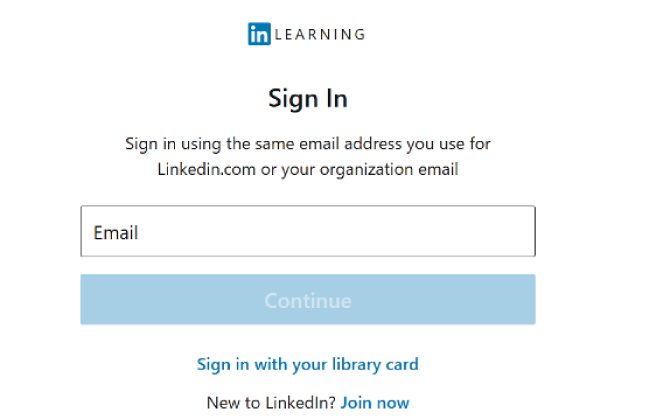
1-1: Access the Sign-in Page
Open the LinkedIn Learning sign-in page.
https://www.linkedin.com/learning-login
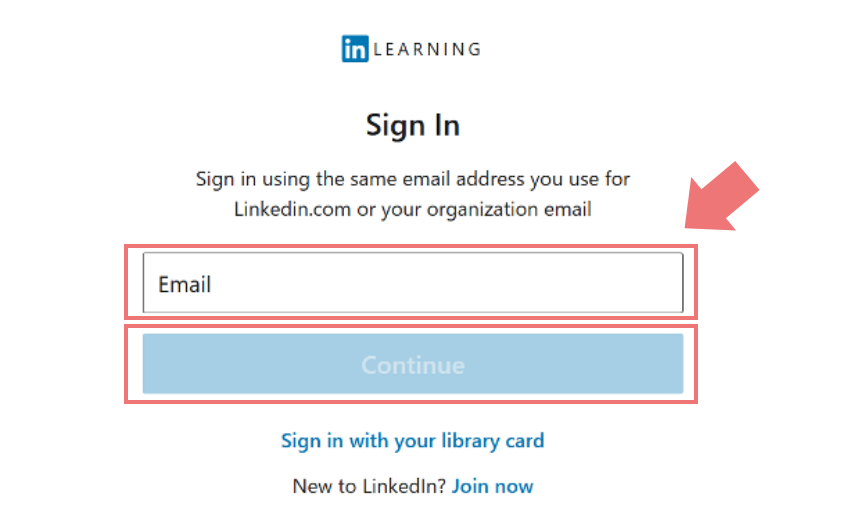
1-2: Enter Your Email Address
Enter your company email address and select "Continue."
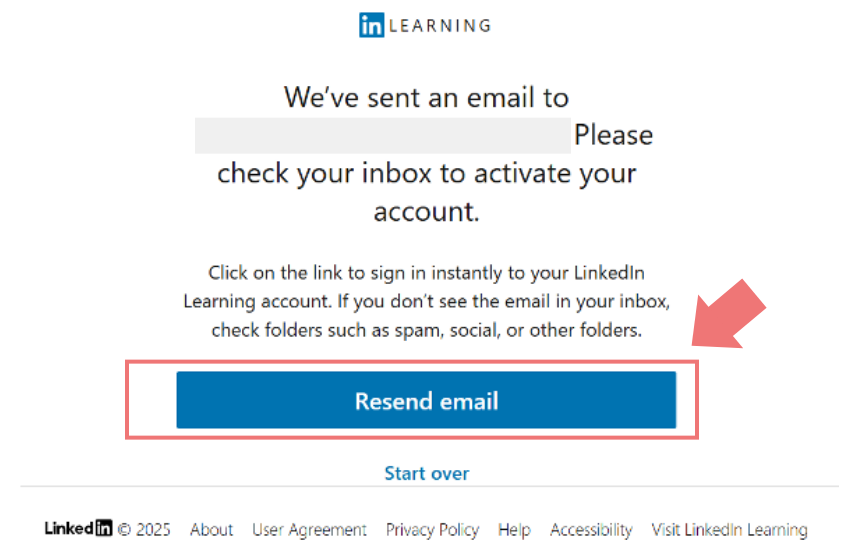
1-3: Resend the Invitation Email
Select "Resend Email," and check your inbox.
Please also check your spam or junk email folder.
If you still do not receive the email the next day after resending it, contact the support desk below.
Contact: LinkedIn Learning Support Desk
Contact us | Learning Help
Once you receive the email, continue to 2-1.
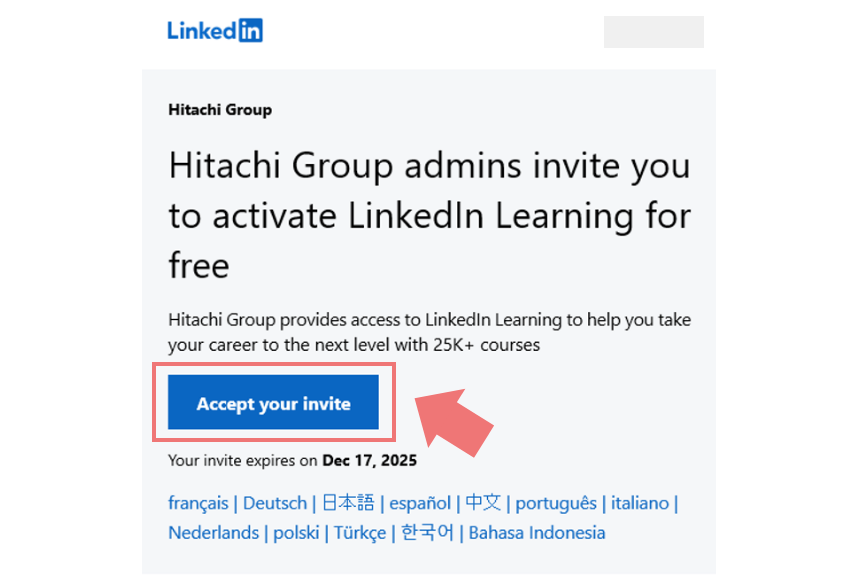
2-1: Open the Invitation Email
Open the invitation email from LinkedIn Learning and click "Accept your invite."
LinkedIn
<messages-noreply@linkedin.com>
[!]Hitachi Group invites you to access LinkedIn Learning
The invitation email may be displayed in English or Japanese.
Click "Accept your invite" or "アカウントを有効化する."
The design and wording of the email may be changed without prior notice, so it may not exactly match this screenshot.
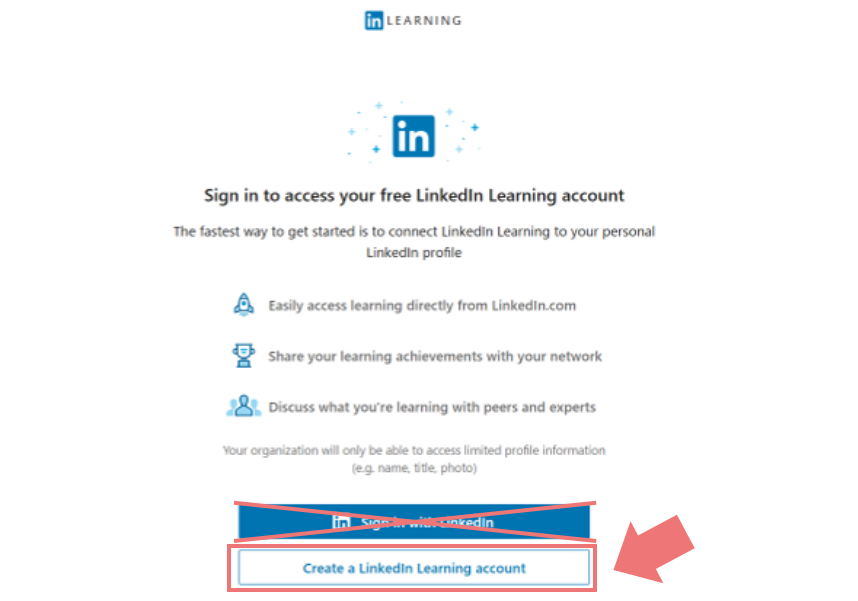
2-2: Create Your LinkedIn Learning Account
Click "Create a LinkedIn Learning Account."
This initial setup uses your company email address and does not require you to sign in with a personal LinkedIn account.
Important: Do not select "Sign in with LinkedIn."
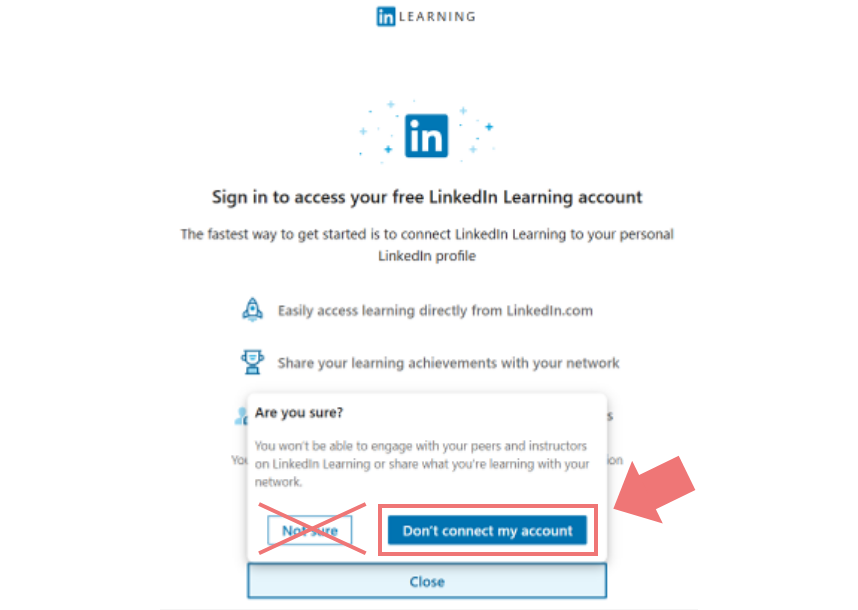
2-3: Continue Without Connecting an Account
Select "Don't connect my account" to continue without connecting your personal LinkedIn account.
Connecting a personal LinkedIn account is not required to use LinkedIn Learning through your company.
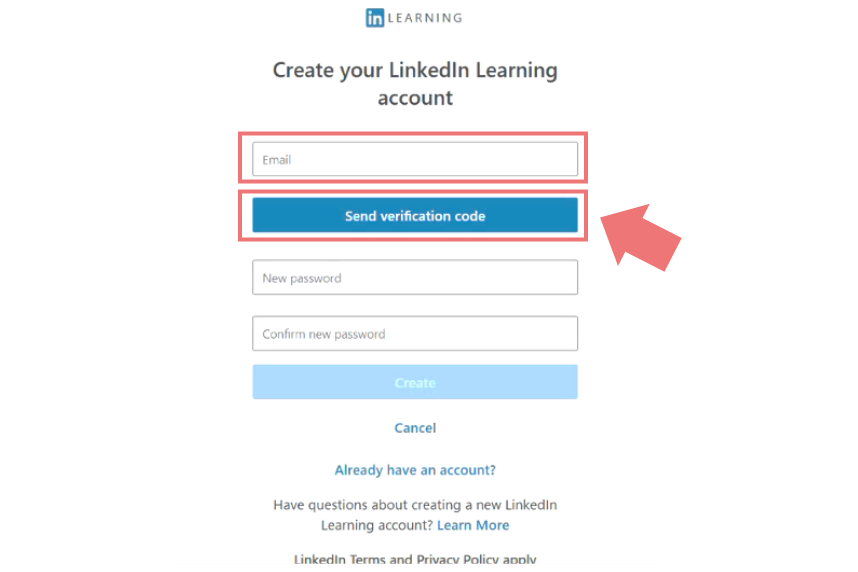
2-4: Request a Verification Code
Enter your company email address and click "Send Verification Code."
Keep this page open while checking your email.
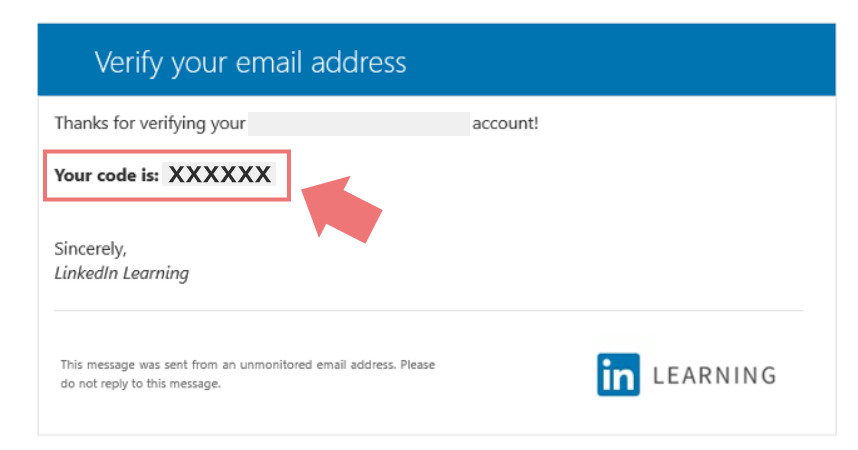
2-5: Check Your Verification Code
A verification code will be sent to your company email address. Copy the code from the email.
Microsoft on behalf of LinkedIn Learning
<msonlineservicesteam@microsoftonline.com>
[!]LinkedIn Learning account email
verification code
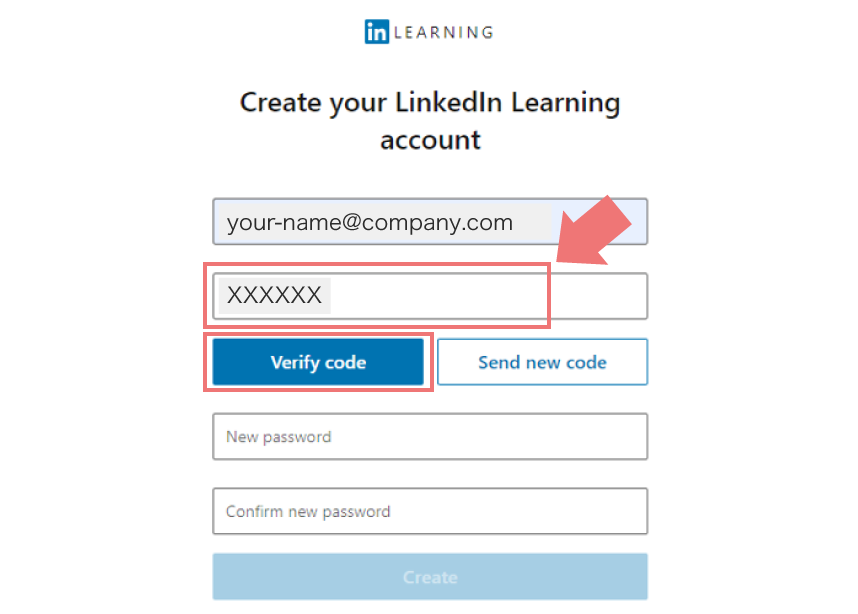
2-6: Verify Your Email Address
Enter the verification code and click "Verify code."
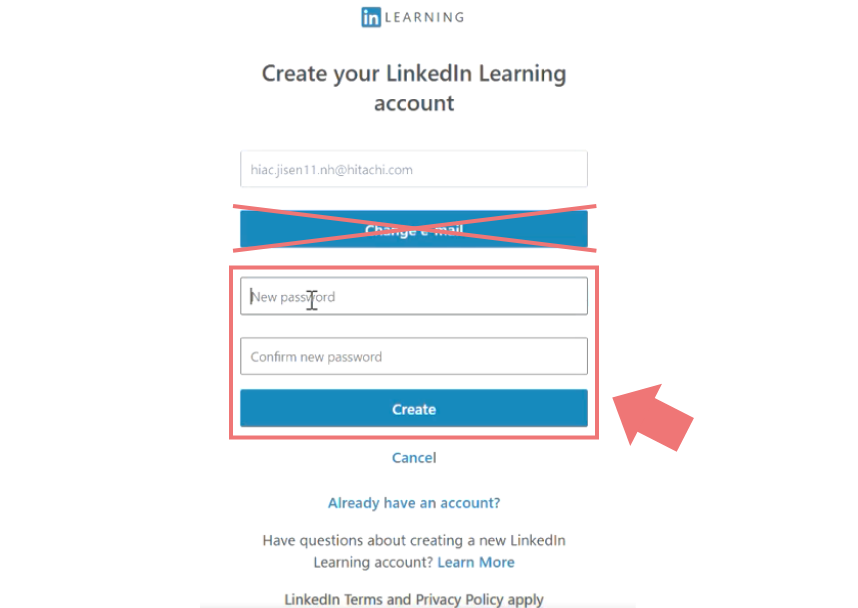
2-7: Create Your Password
Enter and confirm your password, then click "Create."
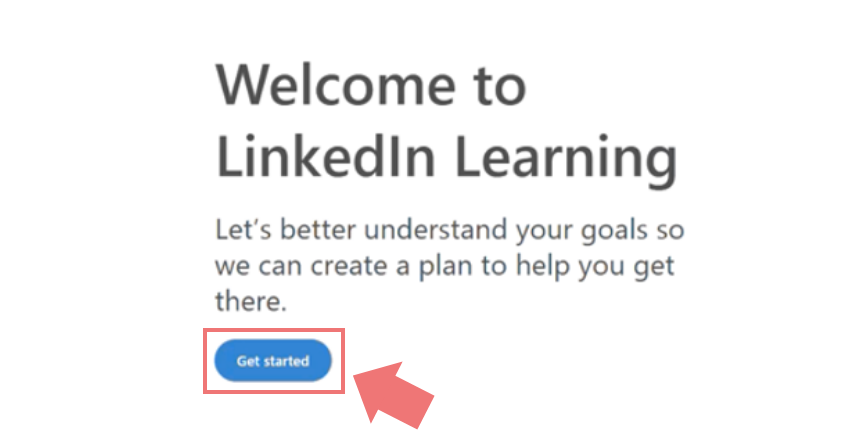
2-8: Complete the Initial Setup
Click "Get Started."
When the "Hello, [Your Name]" page
appears, your initial setup is complete.
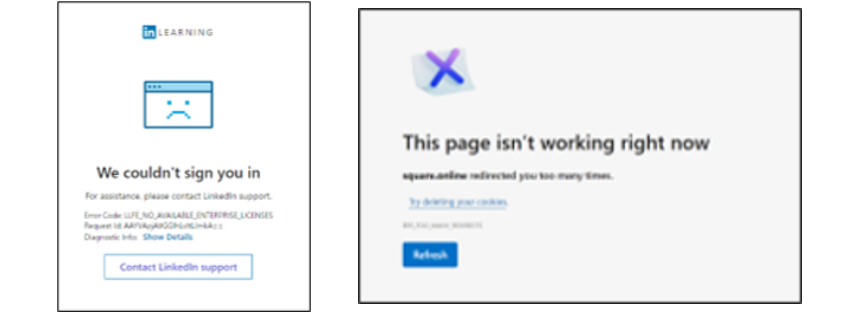
Troubleshooting: Unable to Sign In
If you are unable to sign in, try the following steps in order.
View the PDF version here
81L_linkedIn_learning_quick_start_guide_en.pdf
 Explore Topics and Discover New Learning Opportunities
Learning can start with just a few minutes. Begin by exploring a featured topic, discover new knowledge and practical insights you can apply to your work, and simply click the link below to start watching.
 Set Your Goals and Personalize Your Learning Experience
Set your skill interests and career goals to receive personalized content recommendations aligned with your interests and aspirations. Create your own learning plan and keep developing the skills that support your professional growth.
Examples:・Skills you want to develop・Career goals・Weekly learning goals
Before contacting us, you may be able to resolve your issue by checking this FAQ.
Browser Section
Please contact your organization's Learning and Development department to confirm your eligibility for LinkedIn Learning.
You can resend the invitation email yourself by accessing the LinkedIn Learning sign-in page from a PC browser and entering your company email address. For detailed instructions, please refer to the LinkedIn Learning Startup Guide.
Please check whether the email from Microsoft on behalf of LinkedIn Learning
<msonlineservicesteam@microsoftonline.com> has been delivered to your spam or junk mail folder, or quarantined by your organization's email security system.
If you still cannot locate the email, please create a support ticket through ?the LinkedIn Learning Support Desk:?https://www.linkedin.com/help/learning/ask/lil-gen?lang=en
When submitting your inquiry:* For "How do you access LinkedIn Learning?", select "Through a subscription provided by your organization".* In the "Organization Name" field, enter the name of your company.* Complete all required fields and submit your inquiry.
Linking your LinkedIn profile to LinkedIn Learning is not recommended during the initial setup process. However, you may choose to link your profile at your own discretion.
If you link your LinkedIn profile, you will sign in to LinkedIn Learning using your LinkedIn credentials through the LinkedIn sign-in page.
Please note that if you create a LinkedIn account, you may receive recruitment-related emails from recruiters at your registered email address.
It may take up to 24 hours to receive the email.
Please check if you have received an email from noreply@linkedin.com in your inbox.
Subject:[!]Your name, activate your LinkedIn Learning account
If you still haven't received it the next day, please create a support ticket through ?the LinkedIn Learning Support Desk:https://www.linkedin.com/help/learning/ask/lil-gen?lang=en
When submitting your inquiry:* For "How do you access LinkedIn Learning?", select "Through a subscription provided by your organization".* In the "Organization Name" field, enter the name of your company.* Complete all required fields and submit your inquiry.
This error may occur temporarily due to high traffic.
Please try the following before logging in again:
・Wait for a while before trying again.・Refresh your browser and try again.・Clear your browser cache and cookies.https://www.linkedin.com/help/linkedin/answer/a517600/clear-your-cache-and-cookies?lang=en
If the issue persists, it may be a problem specific to your account. Please create a support ticket through ?the LinkedIn Learning Support Desk:https://www.linkedin.com/help/learning/ask/lil-gen?lang=en
When submitting your inquiry:* For "How do you access LinkedIn Learning?", select "Through a subscription provided by your organization".* In the "Organization Name" field, enter the name of your company.* Complete all required fields and submit your inquiry.
If the LinkedIn login screen appears, it means your LinkedIn Learning account is linked to your LinkedIn account.
Please refer to the LinkedIn account section in the LinkedIn Learning Startup Guide. LinkedIn Learning Startup Guide
【If you wish to continue linking with your LinkedIn account】
Enter your LinkedIn account password.
【If you wish to unlink your LinkedIn account】
Please refer to the following URL to disconnect your LinkedIn profile from the learning license (if you have not left the company):https://www.linkedin.com/help/linkedin/answer/a703810/linkedin-?lang=en
If you are unable to perform the unlinking operation, the administrative office can do it for you.
Please contact the office via the inquiry section at the bottom of this page, stating "Request to unlink LinkedIn account.
This may be a temporary lock on access. It takes 24 hours to unlock, so please try accessing again after 24 hours.
Also, please clear your cache and cookies before accessing.
https://www.linkedin.com/help/linkedin/answer/a517600/clear-your-cache-and-cookies?lang=enIf the issue persists, it may be a problem specific to your account.
Please create a support ticket through ?the LinkedIn Learning Support Desk:https://www.linkedin.com/help/learning/ask/lil-gen?lang=en
When submitting your inquiry:* For "How do you access LinkedIn Learning?", select "Through a subscription provided by your organization".* In the "Organization Name" field, enter the name of your company.* Complete all required fields and submit your inquiry.
This error may be related to the user's cache.
Please try the following and then log in again:
Clear cache and cookieshttps://www.linkedin.com/help/linkedin/answer/a517600/clear-your-cache-and-cookies?lang=en
If the issue persists, it may be a problem specific to your account. Please create a support ticket through ?the LinkedIn Learning Support Desk:https://www.linkedin.com/help/learning/ask/lil-gen?lang=en
When submitting your inquiry:* For "How do you access LinkedIn Learning?", select "Through a subscription provided by your organization".* In the "Organization Name" field, enter the name of your company.* Complete all required fields and submit your inquiry.
You can contact LinkedIn Support via the following page:https://www.linkedin.com/help/learning/ask/lil-gen?lang=enIf you cannot find an answer in the Help Center, select Create a support ticket and submit your inquiry.
When submitting your inquiry:
For "How do you access LinkedIn Learning?", select "Through a subscription provided by your organization".
In the "Organization Name" field, enter the name of your company.
Complete all required fields and submit your inquiry.
App Section
Please update the LinkedIn Learning app to the latest version and check if you can play the content.
If the app is already up to date and you still see the "Unable to complete operation" popup error, please close the popup using the × button and continue learning.
Protection of Personal Information Entered in Inquiry Emails Regarding the LinkedIn Learning Service
Before entering your inquiry, you are required to agree to the following terms. Please read them carefully, and if you agree, click the "Agree and Proceed to Inquiry" button below and send us your inquiry by email.
When sending the email, please clearly state in the email body:
"I agree to the handling of personal information and request a response."
The personal information you provide will be used solely for responding to your inquiry.
If your inquiry relates to services outsourced by our company, we may transfer your name, email address, inquiry details, etc. to the relevant service provider (including foreign companies) for the purpose of providing a response.
Any personal information transferred to another company will be managed in accordance with the personal information protection policy of the receiving company. For details on personal information protection systems in each country, please refer to https://www.ppc.go.jp/personalinfo/legal/kaiseihogohou/#gaikoku
Providing personal information is voluntary; however, if you choose not to provide it, we may be unable to respond to your inquiry or may only be able to provide a limited or incomplete response.
Personal Information Protection Administrator for this mail;
Hitachi Academy Co., Ltd. - Personal Information Protection Manager
About Personal Information Protection(Privacy Policy and Summary) at Hitachi Academy Co., Ltd. (opens in a new window)